How to use Internet Explorer on Windows 11
By Mark Vella-West on November 13, 2025
BeginnerSOURCE: https://beebom.com/how-enable-and-use-internet-explorer-windows-11/
Create a VBS Shortcut to Open Internet Explorer on Windows 11
Sure, you can turn on IE mode in the Microsoft Edge browser (as mentioned below) to load old web apps, but if you want to actually access Internet Explorer in its original UI, a simple VBS script lets you do it. I tested the script on my PC running the latest Windows 11 Pro 22H2 stable build (22621.819, Nov 8, 2022), and it worked like a charm. So follow the steps below, and you are good to go.
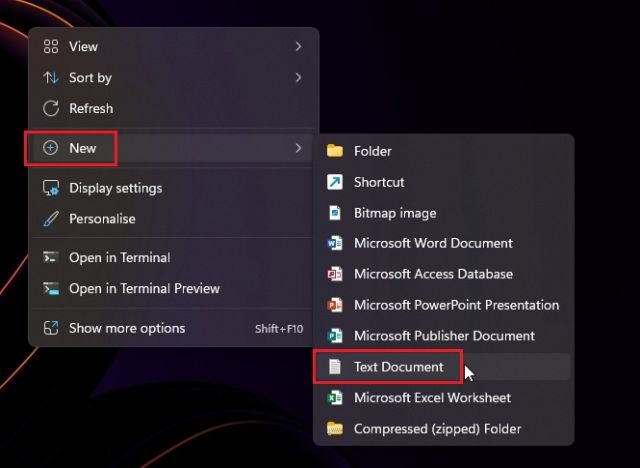
1. First, right-click on the Desktop or any location you prefer and choose New -> Text document.
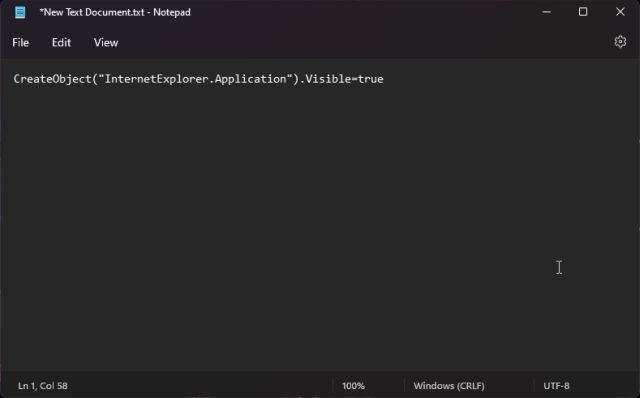
2. Once the text file opens up, copy and paste the below code into the Notepad file.
CreateObject("InternetExplorer.Application").Visible=true
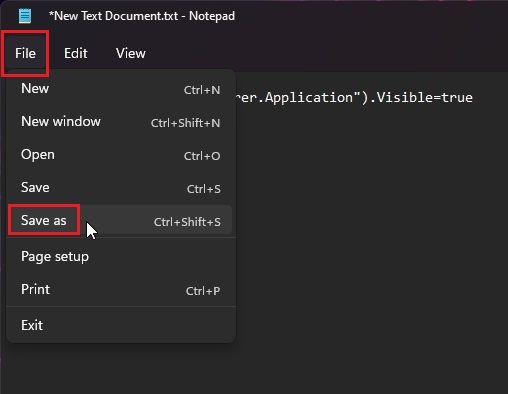
3. After that, click on File -> Save as.
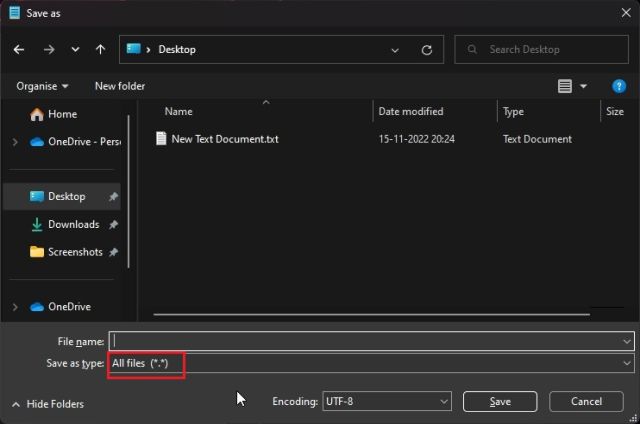
4. Here, click on the drop-down menu next to “Save as type” and change it to “All files (*.*)“.
5. After that, set a name for the shortcut with .vbs extension at the end. For example, I have named the file Internet Explorer.vbs . Now, save the file to a preferred location like your Desktop.
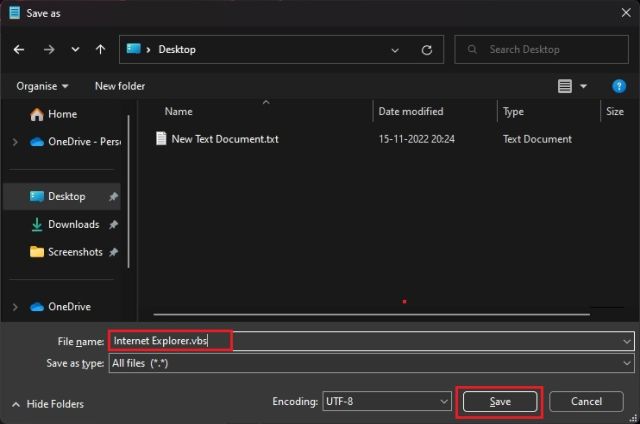
6. As you can see, the VBS file has been created on the Desktop.

7. Now, double-click on the VBS file, and there you have it. Internet Explorer 11 will open up on your Windows 11 PC, and it works flawlessly without any issues. From now onwards, you only need to double-click on the VBS file to use IE 11.
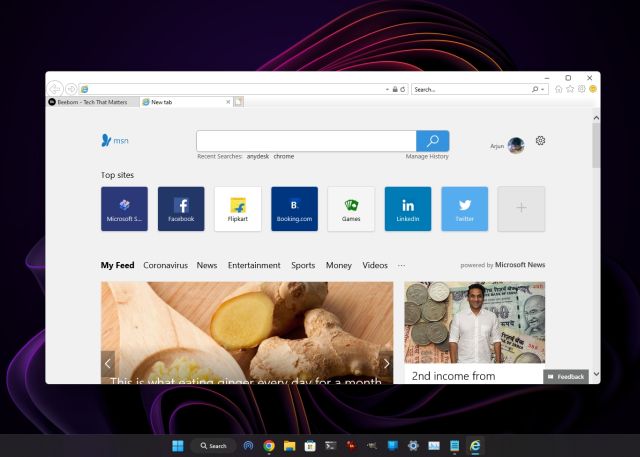
Enable IE Mode in Edge to Use Internet Explorer on Windows 11
If you are happy using Microsoft Edge on your Windows 11 PC and occasionally need to load certain webpages in Internet Explorer, then you can rely on IE mode in Edge. It is a seamless and secure solution that works really well without leaving a modern web browser. With that said, let’s move to the steps.
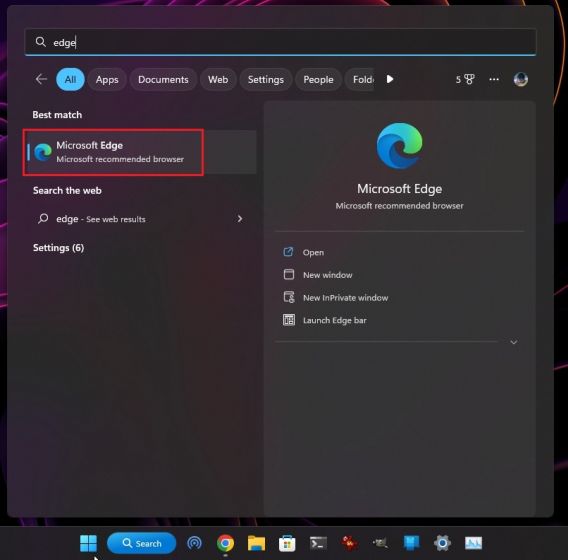
1. Open Microsoft Edge from the Start menu on your Windows 11 PC.
2. Next, click on the 3-dot menu in the top-right corner and open “Settings“.
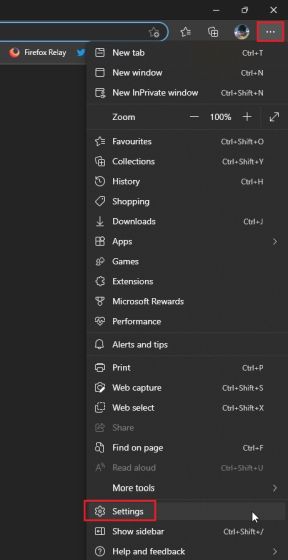
3. Here, move to the “Default browser” menu in the left pane.
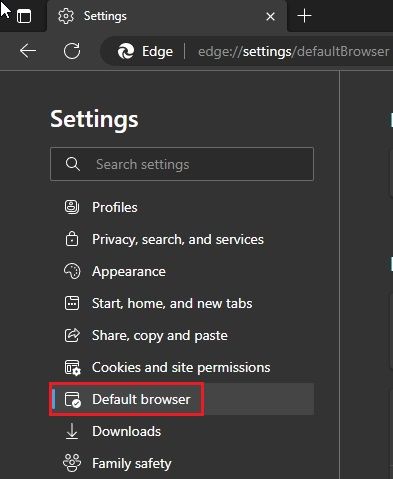
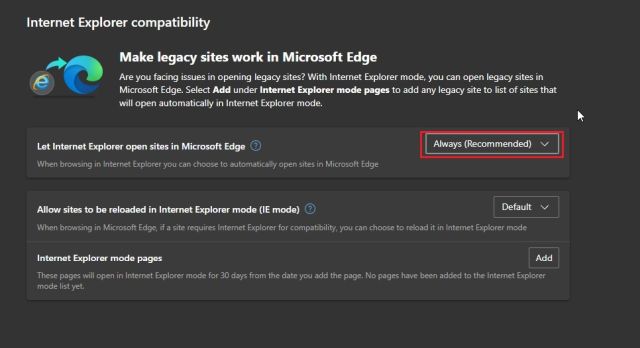
4. Once you are here, change “Let Internet Explorer open sites in Microsoft Edge” to “Always (Recommended)“.
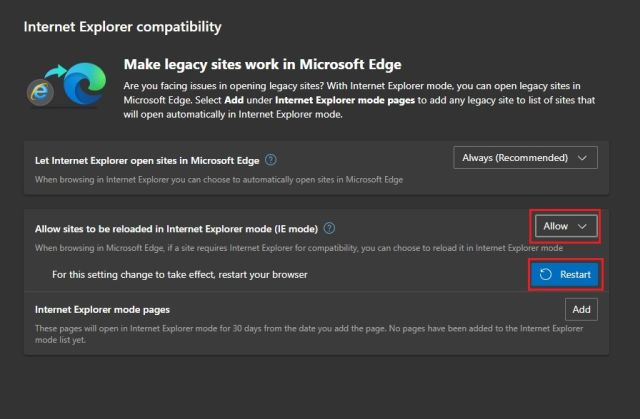
5. After that, change “Allow sites to be reloaded in Internet Explorer mode (IE mode)” to “Allow” from the dropdown menu and then click on “Restart“.
6. Now, click on “Add” next to “Internet Explorer mode pages” and enter the full URL of the webpage. Make sure to add https:// or http:// to the beginning of the URL.
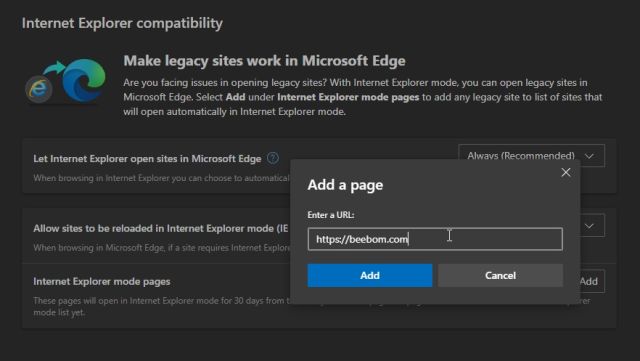
7. Now, go ahead and open that specific URL on Edge, and it will load the webpage in IE mode on Windows 11.
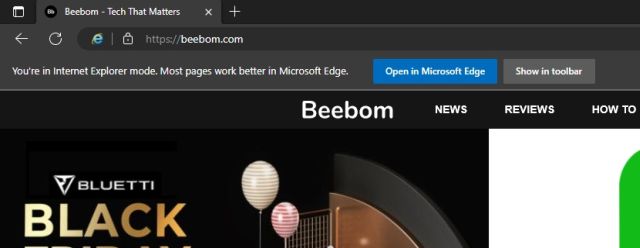
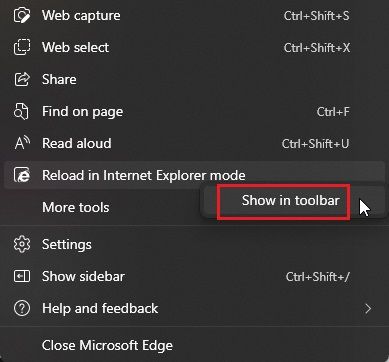
8. In case you want to quickly load pages in IE mode, open the 3-dot menu again and right-click on “Reload in Internet Explorer mode”. Here, select the “Show in toolbar” option.
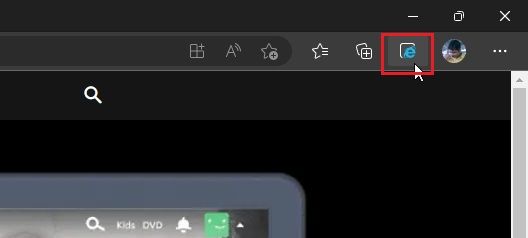
9. This will add a button for IE mode in the Edge toolbar. Now when you are on a webpage, click on the IE mode button, and it will load the webpage in the older framework. Click on the button again, and it will disable IE mode.
Easily Use Internet Explorer 11 in Windows 11
So that is how you can enable Internet Explorer in Windows 11 and use it to access older websites. I generally use the IE mode in Microsoft Edge, but I assume there are old-school users who are more accustomed to Internet Explorer’s UI. Anyway, that is all from us. If you want to enable Hyper-V on Windows 11 Home, head to our tutorial linked here. And to turn on and test out Smart App Control on Windows 11, we have a dedicated guide for you. Finally, if you have any questions, let us know in the comment section below.
More articles on OS-Windows