Moo! There is a Cow in My Linux Terminal
By Mark Vella-West on September 20, 2025
BeginnerSOURCE: https://itsfoss.com/cowsay/
The Linux terminal can be a fun place if you want it to be. Of course, it is used for serious work but you have funny Linux commands to amuse yourself.
The cowsay is one such tool. It gives you a cow in the terminal.
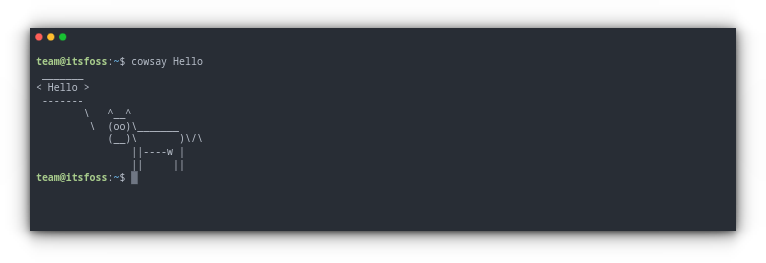
Yes, that's a cow in case you have difficulty recognizing it ;)
The thing about cowsay is that it could be used for 'serious work' if combined with other commands. One such example is using it to display the 'message of the day' on a shared Linux server with multiple users.
Sounds interesting? Time to ̶m̶i̶l̶k̶ install it.
Install Cowsay
Cowsay is a popular tool and it is available in the repositories of most Linux distributions.
To install cowsay in Debian and Ubuntu system, open a terminal and run:
sudo apt install cowsay
For Fedora, use:
sudo dnf install cowsay
And in Arch Linux based distros, use:
sudo pacman -S cowsay
Using Cowsay
As the name suggests, this is an ASCII talking cow, that outputs text provided as its input. By default, cowsay provides several options to tweak the look and appearance of the ASCII cow.
Normal Cowsay
cowsay <Text>
This will print whatever text you provided in a speechbubble with the cow .

Cowsay
Or you can provide output of another command, say echo as input to cowsay using pipes redirection.
echo "Hello" | cowsay
Greedy Cow
Here, cow appears to be greedy, with Dollar eyes.
cowsay -g <message>

Greedy Cowsay
Use Special Characters as eyes
You can use the -e option, and then provide two characters that you want to appear as eyes. The default is “OO”.
cowsay -e hh <hello>

Special Eyes
Here, in the above screenshots, two “h” will appear in place of eyes.
🚧
If the characters entered by you has already been used by any of the default option, say $$, then it is lost.
Use another character instead of the cow
Cowsay provides many other ASCII images also, which you can use through the option -f.
List them with option -l:
cowsay -l
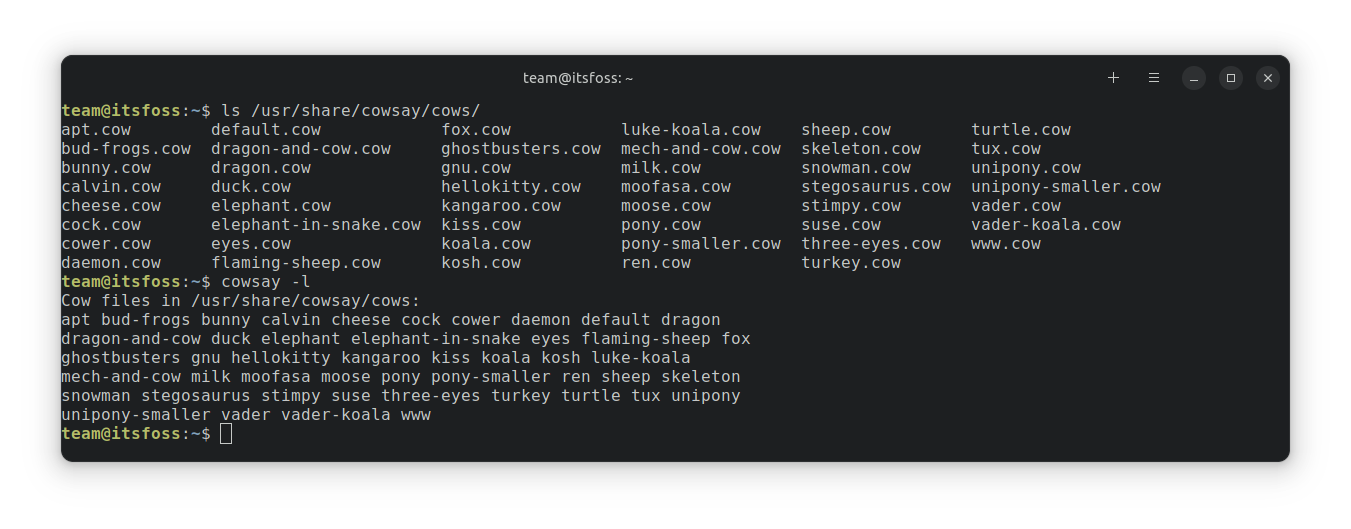
Various default cowsay cow files
Now, to print one of the above images, use:
cowsay -f <cowfile name> <message>
Different Images
Similarly, in newer versions, you can use -r option to randomly print one of the above images.
cowsay -r Hello
Other options
| OptionUse | |
| -b | Invokes Borg mode |
| -d | Causes the cow to appear dead |
| -p | Causes a state of paranoia to come over the cow |
| -s | Makes the cow appear thoroughly stoned |
| -t | A tired cow |
| -y | Brings on the cow’s youthful appearance |
Using Cowthink
Cowthink is an adjoint program that come with cowsay. Instead of the speach bubble, it displays the thought bubble. It will make more sense to you if you are familiar with comic book notations.
cowthink Hello

Cowthink
All the options that were mentioned with cowsay will work here as well.
Using Cowsay with Fortune
With the help of pipe redirection, you can use cowsay along with another popular fun Linux command, the fortune command.
💡
Install fortune and lolcat in Ubuntu using sudo apt install fortune lolcat
For those of you, who don’t know what fortune, it is a small program, that prints quotes from famous persons on a terminal. You can run it as a standalone command like:
fortune
To simply print what fortune says using cowsay, run:
fortune | cowsay

You can also add the cowsay options to make it better:
fortune | cowsay -f dragon
Using a colorful cow with lolcat
Many of you know lolcat and its rainbow effects on texts. So why not use it along with the above programs? All you have to do is to pipe the cowsay command to lolcat.
cowsay Hello | lolcat

Cowsay Lolcat
Now, if you want to add fortune and various cowsay options along with this, use all such options and pipe the entire thing to lolcat, like this:
fortune | cowsay -f tux | lolcatfortune | cowthink -f tux | lolcat
Cowsay, Tux, Fortune and Lolcat
Third-party cow files (for advanced users)
Not interested in the default cowsay cow files? Do not worry, there are a huge number of different cowfiles out there, created by enthusiast developers. Two of them, I will mention here. https://github.com/bkendzior/cowfiles and https://github.com/paulkaefer/cowsay-files
You can either install the cowfiles from these repositories as mentioned on their README, or just download the required cowfile (.cow) from the repository and paste them on /usr/share/cowsay/site-cows/. Now, you can access that cowfile using its name:
cowsay -f <new file name> Hello
You can see in the screenshot I have used a downloaded cow file, called C3PO.cow.
For those of you, who want to create your own images, you can visit Charc0al’s cowsay file.
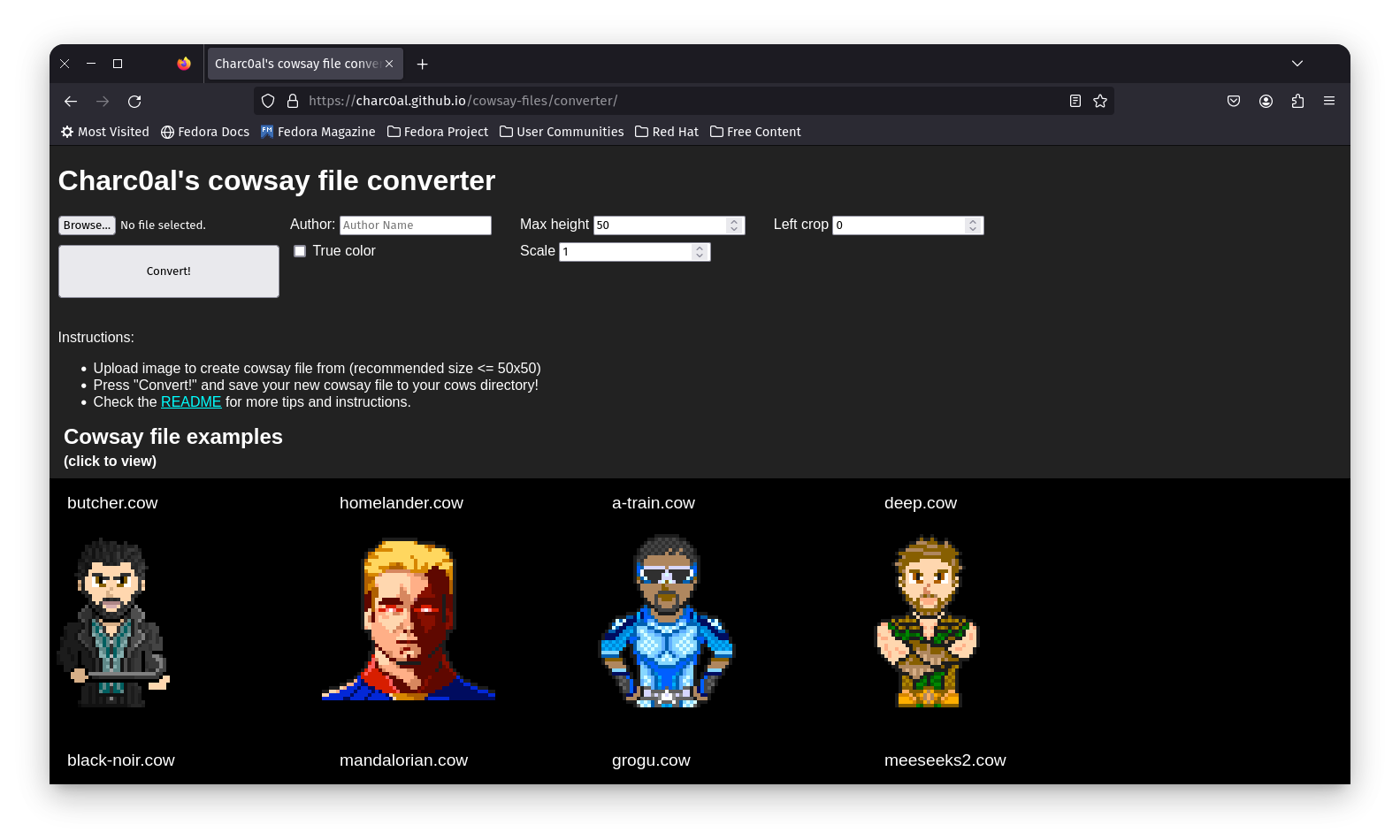
Third Party Cowfiles
Here, you can either download the existing files, or convert some of your images (recommend no larger than 50 × 50) for the purpose.
Other funny uses
Use cowsay prompt to enter password in sudo commands:
sudo -p "$(cowsay 'If you know the password, enter it here. Or just go away:')" <command>
Cowsay Sudo prompt
Make cowsay as an entry to your bash config, so you are greeted every time you open the terminal.
- For newer cowsay versions, like those in Fedora, add
fortune | cowsay -r | lolcatto your~/.bashrc. Now, each time, you open the terminal, a new cowfile with a different quote will be printed. - For older versions of cowsay, where you cannot get the random (-r) option, you can get different files manually, and use
fortune | cowsay -f <name of particular cowfile to use> | lolcat.
Make other commands show output using cowsay
You can make commands like lsblk to print the output using cowsay. Just pipe those commands.
lsblk | cowsay
Use cowsay-beefymiracle in Fedora
beefymiracle is a cowsay package available in Fedora. The cow is turned into beef here (my vegetarian heart cries 😢).
Use the below command to install it:
sudo dnf install cowsay-beefymiracle
Now, run:
cowsay -f beefymiracle <message>
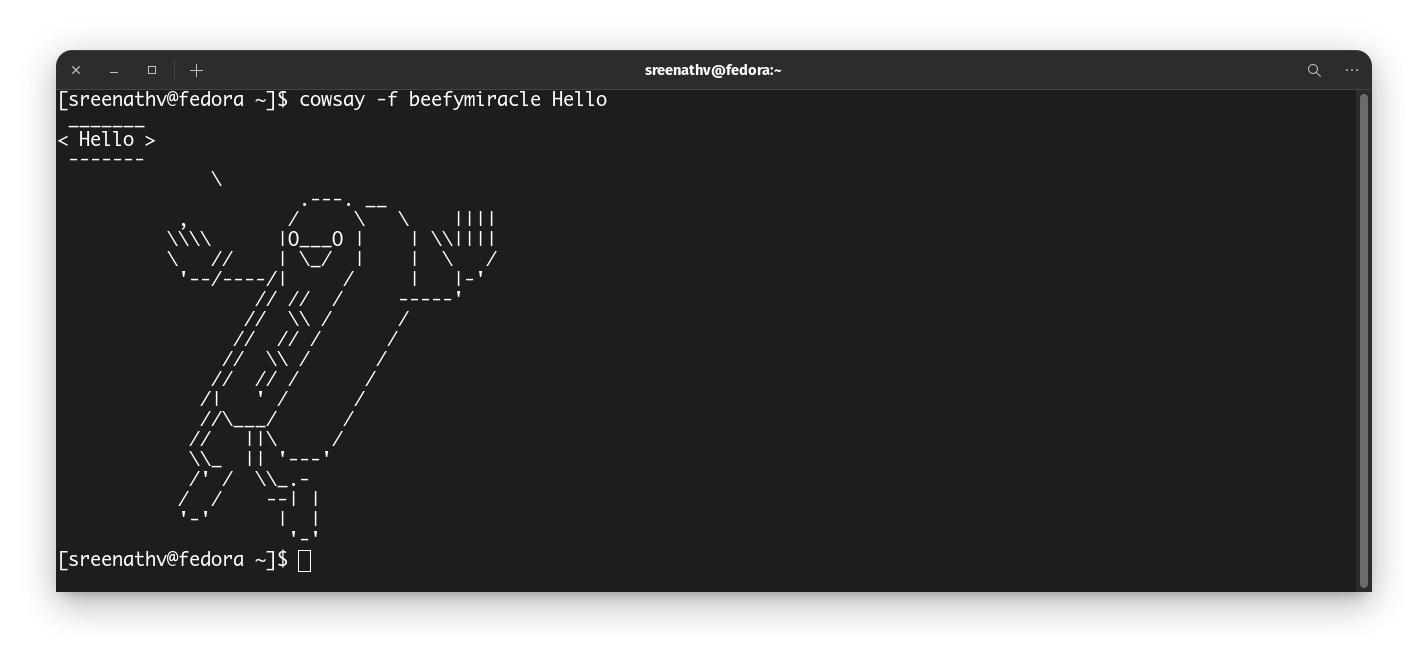
Beef instead of cow but who killed the cow?
Bonus: XCowsay
xcowsay is a graphical alternative to the normal cowsay. Here, the cow is no more ASCII, but a proper image. You can install it by:
sudo apt install xcowsay
Now run:
xcowsay <message>
This will display the graphical cow for a specific amount of time according to the length of the text, and then disappears. You can click on it to hide it immediately, though.
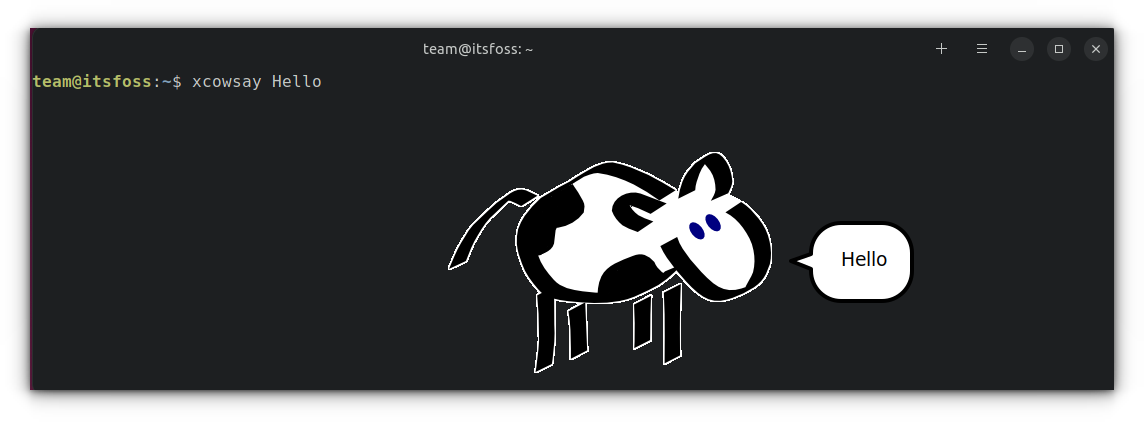
xcowsay command
What is more interesting is the cow can 'dream' images instead of texts. Or even the cow image can be changed to random images.
Use either:
xcowsay --dream=fileORxcowsay --image=file --dream=file


Random Images in XCowsay
You can explore the man page of xcowsay for more options.
More ASCII fun in the terminal
Love ASCII? How about displaying your distribution's logo in ASCII format with Neoftech?
Why restrict with logo? Here are more ASCII tools for Linux terminal.
Don't stop the fun in the terminal.
I hope you liked this tutorial on using cowsay in various formats. It's amazing that this little tool comes with so many options and there are so many ways to use it.
Which cowsay example did you like the most here? Don't say beef one 💔
More articles on OS-Linux