AroFlo Academy
By Webmaster | OneNet on February 9, 2026
BeginnerWhether you're new to AroFlo and want to start learning the essentials, or whether you're an existing AroFlo user who wants to sharpen up your skills, the AroFlo Academy is a great way to learn our product.
Packed with Office, Field, and site setup courses, the Academy is an interactive eLearning space, so you don't need to interfere with your live AroFlo site.
When you sign up to AroFlo, your primary contact is automatically given access to the AroFlo Academy via email. Follow the instructions in this email to log in.
You can also access the Academy via the Help Menu  > AroFlo Academy.
What if I'm not the primary contact?
| If you're not the primary contact, you can still register for the Academy. Simply click the Register here link, fill out the form with your details including your name, email address, company name, and preferred username, and click New Account to submit. | You should receive a welcome email within 24-48 hours with instructions on how to log in. |  |
Forgotten username or password?
| Use the relevant links on the Sign In screen. | 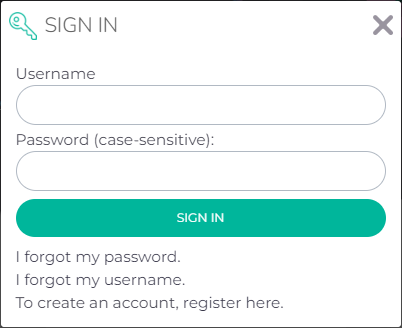 |
How do I enrol in courses?
Once your account has been confirmed and you've logged in, click  Catalogue to start looking for the courses you want to enrol in.

From here, choose a catalogue and then browse through the available Sub-Catalogues and/or Courses and click Enrol when ready to start a course. Alternatively, use the Search bar  to search topics.
What are the types of courses?
The three catalogues for the types of courses are
| CatalogueIconDescription | ||||
| Site Administration |  | Back-of-house settings and defaults | ||
| Office |  | Using AroFlo from your desktop or laptop | ||
| Field |  | Using AroFlo on the go using your phone or tablet |
Workflow Builder
Not sure where to start? The Workflow Builder is a great way to kickstart your AroFlo learning journey. Enrol in this course and answer a few questions about your business and your workflow to receive a workflow code. Once you give this code to your dedicated AroFlo trainer, they will work with you on topics you should explore.

Learning Paths
We also have Learning Paths available, which are courses packaged together, designed to learn about a topic in a particular order.
Viewing your courses
Click  My Dashboard to return to your dashboard to see your enrolled courses.
Click  to view the course details such as course description, estimated length, and modules within the course.
Click  to start the course/continue where you left off.
Don't want to see Completed Courses?
If you want to hide Completed courses from showing in the list, click the filter option  and tick Completed and Apply Filters.
Complete Course List
Onboarding Launchpad
Site Administration
Field
Office
Kick off your AroFlo implementation with a collection of courses tailored to specific workflows.
| Learning PackageBasic workflow outline: | |
| Do & Charge |
- The job comes in - email, call, website, work order, etc (could be standard or emergency work)
- The job is entered or imported into AroFlo
- The job is scheduled or picked from a picklist to attend, or the contractor is assigned
- Start the job, record materials, labour, expenses, notes, photos, POs etc
- The job is completed, invoice is raised (in either Field or Office)
- The invoice is paid (in either Field or Office)
| Quoted Work |
- Request for work comes in via email, call, website, work order, etc
- The quote is raised, and a potential site visit is scheduled for scoping and options
- The quote is finalised and sent out for approval
- The quote is approved or rejected and converted to a job/task
- Potential for deposit invoice (part invoice) to be raised/paid
- The job is scheduled or picked from a picklist to attend, or the contractor assigned
- Start the job, record materials, labour, expenses, notes, photos, POs etc
- Potential to create asset record for any future servicing/maintenance requests
- The job is completed, final invoice raised from quoted items, or remaining balance after deposit payment
- The final invoice is paid.
| Maintenance |
- The quote can be raised to capture contract for new work received, to track costs against original contract value
- When new work is due, a work order is received, or a scheduled maintenance job becomes due
- Work order is entered as a task, or a periodic template generates a job
- Task assigned to the worker to attend, or assigned to a contractor, work order recorded and tracked as Cust ON in the task
- Start the job, record materials, labour, expenses, notes, photos, POs etc
- Job is completed, and the final invoice is raised to match the work order received
- The invoice is paid.
| Asset and Facilities Management |
- Work order is received, or scheduled maintenance job is due to service or maintain client assets
- Work order is entered as a task, or a periodic template generates a job
- Task assigned to worker to attend or assigned to a contractor
- Compliance/forms (no current courses)
- Task asset fields filled out (no current courses)
- Start the job, asset passed or failed, record materials, labour, expenses, notes, photos, POs etc
- The job is completed, and the final invoice is raised to match the work order received
- The invoice is paid.
More articles on OneNet